
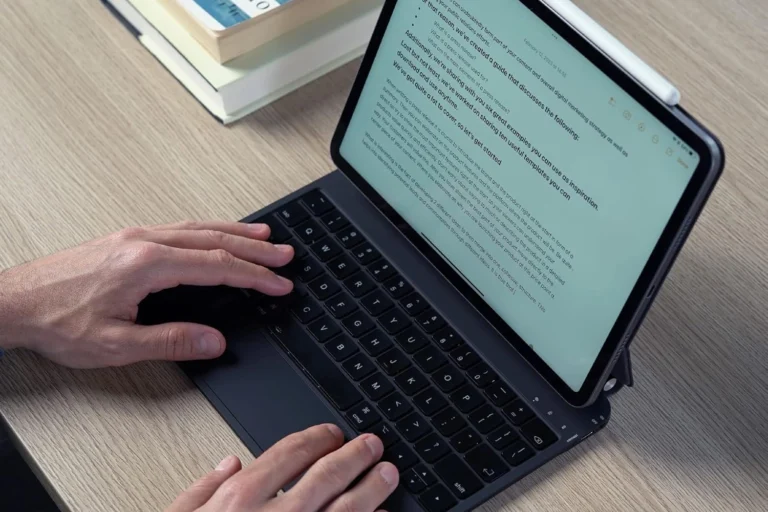
If you need to send an email to family in Hindi, draft a contract in Arabic, or complete a form in Greek, staring at an English QWERTY keyboard can stop you in your tracks. Replacing hardware is costly, plastic keyboard skins slip around, and adhesive stickers peel off and leave sticky residue on your keys.
You do not need to buy a localized hardware keyboard or memorize an entirely new physical key layout to write in another script. Google Input Tools bridges the gap between your physical keyboard and the language you want on screen. It processes input in three distinct ways:
- Phonetic Transliteration: Type words as they sound using the Latin alphabet (such as typing “namaste” to produce “नमस्ते”), and the software converts your keystrokes into native script automatically.
- On-Screen Virtual Keyboards: Display an interactive visual map of any target script, allowing you to click characters directly or press corresponding keys on your physical board.
- Handwriting Recognition: Draw characters directly onto the screen using a mouse, trackpad, or touchscreen—ideal for complex scripts or rare characters whose Romanized spelling you might not know.
Google Input Tools runs in several environments: as a lightweight extension for Google Chrome, as a built-in feature inside Google Docs and Gmail, and on mobile devices through the Gboard keyboard app.
Set Up Google Input Tools Chrome Extension
The fastest way to enable multi-language typing across the web is through the official Chrome extension. Unlike built-in operating system language packs, the extension requires no administrative rights, system reboots, or regional settings adjustments.
- Open the Chrome Web Store and search for Google Input Tools.
- Click Add to Chrome, then confirm by selecting Add extension.
- Once installed, click the puzzle-piece Extensions icon in the top-right corner of Chrome and click the pin icon next to Google Input Tools to keep it visible on your toolbar.
- Click the Google Input Tools icon and select Extension Options.
- In the options tab, browse the available languages on the left side. Each language offers input styles indicated by an icon:
- A character icon (such as a native letter) represents transliteration.
- A mini-keyboard icon represents a virtual keyboard.
- A pencil icon represents handwriting recognition.
- Select your preferred language and input style, then click the right-arrow button to move it into the Selected Input Tools list on the right.
To start typing, click any text box on a webpage, click the extension icon on your browser toolbar, and choose your active language. Toggle the tool on and off instantly by pressing Ctrl + Shift + K on Windows and ChromeOS, or Cmd + Shift + K on macOS.
How Phonetic Transliteration Works
Phonetic transliteration is the fastest input method for non-Latin scripts if you already know a standard QWERTY keyboard layout. Rather than translating the meaning of a word, transliteration maps the phonetic sounds of English letters to corresponding phonetic characters in scripts like Hindi, Bengali, Arabic, Amharic, Tamil, or Russian.
For example, with Hindi transliteration enabled, typing shukriya calculates the Devanagari equivalent: शुक्रिया. Enabling Arabic transliteration and typing marhaban converts directly into مرحبا.
To maximize your speed with phonetic transliteration, rely on these practical mechanics:
- Real-Time Suggestion Lists: As you type, a dropdown menu appears below your cursor with numbered word options. The first option is the tool’s primary candidate based on common usage.
- Instant Selection with the Spacebar: If the highlighted first suggestion is correct, press the Spacebar. The word converts immediately and inserts a space so you can keep typing without pausing.
- Using Number Keys for Alternative Spellings: If you need a different vowel length or compound character, check the numbered candidates in the dropdown (1 through 5) and press the matching number key on your keyboard.
- Fixing Errors on the Fly: If a word converts incorrectly, press Backspace once right after conversion. This step undoes the conversion and reopens the suggestion menu so you can pick the correct option.
Using On-Screen Virtual Keyboards
While transliteration works well for phonetically flexible scripts, other languages benefit from direct visual placement or manual drawing.
When to Choose the Virtual Keyboard
Languages like Greek, Russian, Thai, and Hebrew follow standardized national keyboard layouts (such as Russian JCUKEN or Thai Kedmanee). If you want to learn the official layout for a language, select the keyboard icon in your settings.
When activated, an interactive visual keyboard floats at the bottom of your browser window. You can click the letters with your cursor or press the corresponding keys on your physical keyboard. The visual layout updates when you hold down Shift or AltGr, revealing accent marks, diacritics, and regional currency symbols.
When to Use Handwriting Input
When you encounter an unfamiliar character, kanji, or ligature whose Romanized spelling you do not know, handwriting is the most reliable input choice. Click the pencil icon next to your language to open the drawing canvas.
Use your trackpad, mouse, or stylus on a touchscreen to draw the character. Google Input Tools processes your stroke order and shape in real time, presenting matched characters in a tray at the bottom of the canvas. Click the correct character to insert it into your active text field.
Enable Input Tools Directly Inside Google Docs and Gmail
If you work primarily inside Google Workspace, you can use Input Tools without installing the Chrome extension. Both Google Docs and Gmail include built-in support that functions in any modern web browser.
Enabling Input Tools in Google Docs
- Open any document in Google Docs.
- Go to File > Language and choose your target language.
- An Input Tools icon (showing a keyboard or native letter) will appear on the right side of the formatting toolbar.
- Click the arrow next to the icon to switch between transliteration, on-screen keyboards, or handwriting. Press Ctrl + Shift + K (or Cmd + Shift + K) to toggle the tool on or off.
Enabling Input Tools in Gmail
- Click the Settings gear icon in the top-right corner of Gmail and select See all settings.
- Under the General tab, locate the Language section.
- Check the box for Enable input tools.
- In the setup window, select your languages and input styles from the left column, move them to the right column, and click OK.
- Scroll to the bottom of the page and click Save Changes.
A dedicated keyboard button will now appear next to the settings gear in Gmail, letting you switch input modes whenever you compose or reply to an email.
Note on Dictionary Sync: Custom words, regional names, and specific spellings you select while typing are saved to your Google Account profile, improving suggestion accuracy across Docs, Drive, and Gmail.
Fixing Issues with Fonts, Layouts, and Text Display
If your converted text displays incorrectly, these adjustments typically resolve the issue:
- Characters Displaying as Blank Boxes or Question Marks: If typed characters show up as empty rectangles (often called “tofu”) or question marks, your operating system lacks the required Unicode font pack. Install universal fonts such as Google Noto Sans or update your OS language packs.
- Keyboard Shortcut Conflicts: If pressing
Ctrl + Shift + Kopens the browser developer console instead of the input tool, openchrome://extensions/shortcutsin your Chrome address bar. Locate Google Input Tools and assign a custom shortcut that does not conflict with default system commands. - Tool Unresponsive in Specific Fields: Secured web forms (such as password fields or banking portals) often block third-party script inputs for security. If typing stops working in your chosen script, click outside the text box, click back in, and confirm that the extension icon is active on your toolbar.